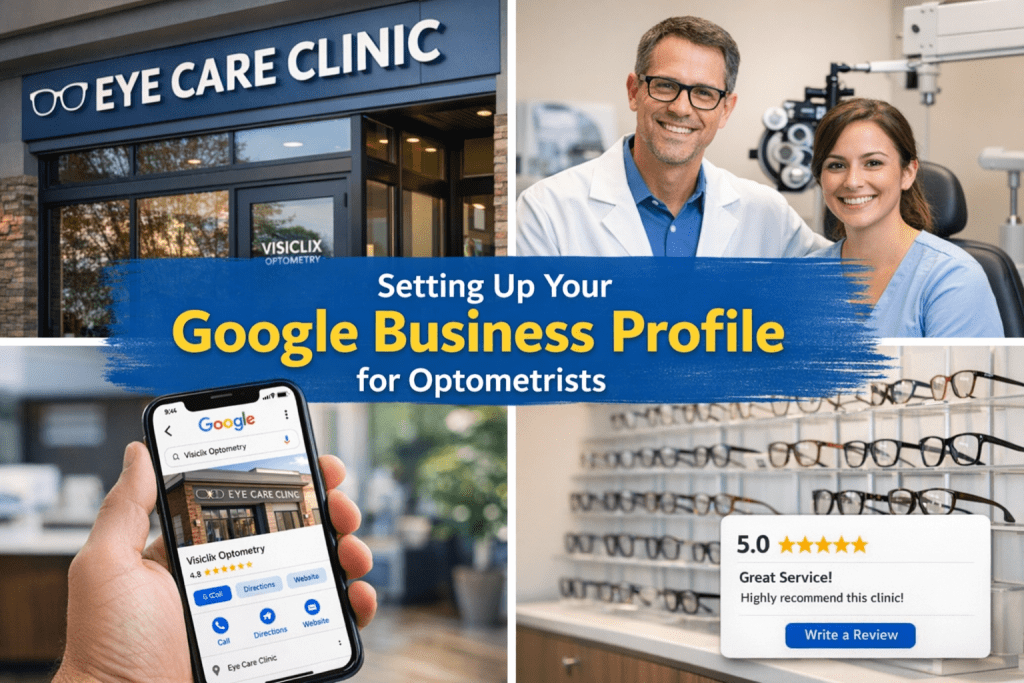
When someone searches “optometrist near me” or “eye clinic in [City]”, your Google Business Profile (GBP) is often the first impression they get—before they ever visit your website. A complete, accurate listing helps your practice appear in Google Search and Google Maps, and it gives patients the information they need to call, book, or get directions.
This guide walks you through a Google Business Profile setup for eye clinics, plus the optimizations that help you earn more calls, direction requests, and appointment bookings.
Table of contents
- What a Google Business Profile does for optometrists
- What you need before you start
- Step-by-step: Google Business Profile setup for eye clinics
- Optimization checklist (what actually improves performance)
- Common mistakes to avoid
- FAQs: Google Business Profile for optometrists
What a Google Business Profile does for optometrists
A Google Business Profile is Google’s free local listing that controls how your clinic appears on Search + Maps, including your hours, phone number, website link, location/service area, photos, services, and reviews.
For optometry and eye care, this matters because patients tend to choose the clinic that looks:
- Easy to contact
- Trustworthy (strong reviews + real photos)
- Up-to-date (accurate hours, active posts, clear services)
What you need before you start
Gather these first so setup is fast and accurate:
- Practice name (exactly as you want it displayed)
- Address (or service area), phone number, and website
- Logo and a few brand images
- A list of core services (eye exams, contact lenses, pediatric care, dry eye, etc.)
- Real photos: exterior signage, reception area, exam rooms, team photos
Tip: Keep your practice information consistent everywhere online (website, directories, social profiles). Consistency builds trust and reduces listing issues.
Step-by-step: Google Business Profile setup for eye clinics
Step 1: Create or claim your profile
Search for your practice name in Google. If a profile already exists, you can claim it. If not, create a new listing and follow Google’s prompts.
Step 2: Choose the right categories
Categories strongly influence what searches you appear for.
- Primary category: usually Optometrist (or the closest match to your practice)
- Secondary categories: add only what truly applies (don’t overdo it)
Visiclix tip: Pick categories based on what you actually provide, not what you wish you offered.
Step 3: Enter NAP perfectly (Name, Address, Phone)
Make sure your:
- Business name
- Address
- Phone number
…are accurate and match what’s on your website and other listings.
Step 4: Set hours (including holiday/special hours)
Incorrect hours frustrate patients and can cost you appointments. Update:
- Regular business hours
- Holiday hours
- Special hours for events/closures
Step 5: Add your website link (booking-friendly)
Add your website link, and if possible, point patients to an appointment booking page or a request-an-appointment page.
Optional: Add UTM tracking to the website link so you can measure clicks in analytics.
Step 6: Write a patient-friendly business description
Use a clear, human description that includes your location and core services naturally (avoid keyword stuffing).
Example:
“We’re a trusted optometry clinic in [City] offering comprehensive eye exams, contact lens fittings, pediatric eye care, dry eye treatment, and eyewear styling. Our team proudly serves patients across [Neighborhood/Area] with modern care and friendly service.”
Step 7: Add services (don’t skip this)
List each service you provide so you can show up for service-based searches, not just your brand name.
Common services for optometry GBPs:
- Comprehensive eye exams
- Contact lens exams and fittings
- Pediatric eye care
- Dry eye evaluation/treatment
- Diabetic eye exams
- Emergency eye care (if applicable)
- Myopia management (if offered)
- Eyewear and frames
- Prescription sunglasses
Step 8: Upload photos (and optional video)
Photos increase trust and help patients recognize your clinic in real life. Upload:
- Exterior + signage (most important for navigation)
- Reception/waiting area
- Exam room(s) and key equipment
- Team photos (warm, professional)
- Product shots (frames wall, optical displays)
Photo refresh goal: Add at least 1–2 new photos per month.
Step 9: Verify the business
Verification protects your listing and unlocks full management access. Google may offer postcard, phone, email, or video verification depending on your listing.
Optimization checklist (what actually improves performance)
Keep everything “boringly accurate”
This is the foundation:
- Correct NAP
- Correct hours (including holidays)
- Correct categories
- Complete services list
- Updated website link
Reviews: get them and respond consistently
Reviews build confidence quickly. Create a simple system:
- Send a review request after appointments (SMS/email)
- Ask in person when appropriate
- Respond to every review (positive and negative)
Review request example:
“Thanks for visiting [Practice Name] today! If you have a minute, would you share your experience in a quick Google review? It helps other patients find us: [Insert Review Link]”
Post updates (offers, education, announcements)
Google Posts keep your profile active and give patients timely reasons to choose you.
Easy posting ideas for eye clinics:
- Back-to-school eye exam reminders
- Dry eye awareness tips
- New frame arrivals
- Insurance updates
- Staff introductions
- Seasonal promotions (sunglasses, contacts)
Simple posting rhythm:
- 1 post/week (ideal) or 2 posts/month (minimum)
- Add 1 new photo monthly
Use Q&A like an FAQ section
Seed your own Q&A with common patient questions (and answer them). Examples:
- Do you accept walk-ins?
- What vision insurance do you accept?
- Do you offer pediatric eye exams?
- How do I book an appointment?
- Do you fit specialty contact lenses?
Track performance with GBP Insights
GBP Insights shows how patients find you and what they do next:
- Calls
- Direction requests
- Website clicks
- Messages (if enabled)
Common mistakes to avoid
- Keyword-stuffing the business name (risk of suspension/edits)
- Forgetting to update holiday hours
- Using low-quality photos (or never adding new ones)
- Ignoring reviews (especially negative reviews)
- Setting up once and never updating posts, photos, or services
FAQs: Google Business Profile for optometrists
How many categories should an optometry practice use?
Use one strong primary category and a few accurate secondary categories. Avoid adding categories that don’t match your services.
How often should an optometrist post on Google Business Profile?
Weekly is ideal, but even 2 posts per month helps keep your listing active and informative.
Do photos really impact patient decisions?
Yes. Photos reduce uncertainty, build trust, and help patients recognize your location—especially exterior signage and front entrance photos.
Need help setting up or optimizing your Google Business Profile?
A high-performing Google Business Profile for optometrists isn’t “set it and forget it.” The practices that win locally treat GBP like a living asset: accurate info, steady reviews, fresh photos, and consistent posts.
If you’d like, Visiclix can help you set up your GBP the right way and maintain it so it keeps generating calls and appointments.